
项目代码:https://github.com/Shay0921/header-navbar.git
在小程序中,从转发出来的小程序消息卡片进入,因为页面栈中只有一个,所以不会出现返回按钮,对于一些电商平台来说,当商品被转发后会很影响客户查看其它产品和首页,这时候就需要使用自定义导航栏自己写一个“胶囊按钮”。如下图所示:
从别的页面点到商品页时会有返回和首页按钮;

当从分享页进入到商品页时,因为页面栈只有一个,所以只有首页按钮;

首先我们需要如何开启自定义导航栏,查看手册后会发现一个页面配置项:navigationStyle

之前的版本此配置项只能在app.js中配置,是全局的属性,而现在可以在单独的页面json中配置,实现单独页面自定义导航栏。
整体思路
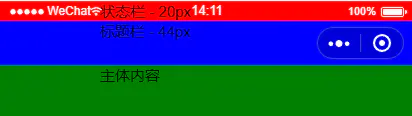
当使用了navigationStyle:custom后,之前的顶部标题栏会被删除,右侧的胶囊按钮则会固定在右上角。然后在当前页面添加了三个view(状态栏、标题栏、主体内容),可以看出三块的布局,我直接写死的高度:状态栏20px,标题栏44px。这个是自定义导航栏的关键,需要去计算这两块的高度,还有返回|首页胶囊按钮的位置。基础库 2.1.0开始可以使用wx.getMenuButtonBoundingClientRect()来获得右侧胶囊按钮的位置信息,而有了这个信息,就能相对的算出我们想要在左侧添加的胶囊按钮的位置。通过wx.getSystemInfoSync()中的statusBarHeight找到状态栏的高度。
目录结构
├── components                  组件
│  ├── headerNavbar             顶部自定义导航栏
│  │  └── headerNavbar.js
│  │  └── headerNavbar.json
│  │  └── headerNavbar.wxml
│  │  └── headerNavbar.wxss
├── pages                       页面
│  ├── index                    首页
│  │  └── index.js
│  │  └── index.json
│  │  └── index.wxml
│  │  └── index.wxss
│  ├── navigationStyle          引入自定义导航栏的页面(单独配置了navigationStyle)
│  │  └── navigationStyle.js
│  │  └── navigationStyle.json
│  │  └── navigationStyle.wxml
│  │  └── navigationStyle.wxss
│  │  └── testPage.js           路由测试页面(后面用来测试跳转显示不同胶囊按钮)
│  │  └── testPage.json
│  │  └── testPage.wxml
│  │  └── testPage.wxss
全局变量
app.js
在app.js中要先获得状态栏高度和右侧胶囊位置信息
App({
    onLaunch: function (options) {
      // 这里省略掉了登录和获取用户信息等函数
      // 因为我在别的页面也需要使用此信息,所以没有单独获得 statusBarHeight
      wx.getSystemInfo({ // 获取设备信息
        success: (res) => {
          this.globalData.systeminfo = res
        },
      })
      // 获得胶囊按钮位置信息
      this.globalData.headerBtnPosi = wx.getMenuButtonBoundingClientRect()
    },
    globalData: {
        systeminfo: {}, // 系统信息
        headerBtnPosi: {} // 胶囊按钮位置信息
    }
})
这里需要注意wx.getMenuButtonBoundingClientRect(),并不是像wx.getSystmInfo一样有success回调函数,而是像对象一样wx.getMenuButtonBoundingClientRect().height来使用。
组件代码
headerNavbar.wxml
<!-- 自定义导航栏 -->
<view class='navbar-wrap'
  style='height:{{navbarHeight}}px;padding-top:{{statusBarHeight}}px;'>
  <view class="navbar-text"
    style='line-height:{{navbarBtn.height + navbarBtn.top}}px;'>
    {{navbarData.title ? navbarData.title : "默认标题"}}{{navbarHeight}}
  </view>
  <view class="navbar-icon"
    wx:if='{{navbarData.showCapsule ? navbarData.showCapsule : true}}'
    style="top:{{navbarBtn.top + statusBarHeight}}px;left:{{navbarBtn.right}}px;height:{{navbarBtn.height}}px;">
      <image wx:if='{{haveBack}}' bindtap="_goBack" class="floatL" src="/img/navbar_back_white.png"></image>
      <view wx:if='{{haveBack}}' class="floatL"></view>
      <image bindtap="_goHome" src="/img/navbar_home_white.png"></image>
  </view>
</view>
<!-- 手写loading -->
<view class="navbar-loading" style='height:{{navbarHeight}}px;line-height:{{navbarHeight}}px;'>
  <text>...</text>
</view>为了适配不同手机屏幕,高度和胶囊按钮的位置都需要在html里面赋值,下面会详细的说明高度如何计算。在自定义导航栏组件中分为两部分,一个是顶部的导航栏另一个是自己写的loading。
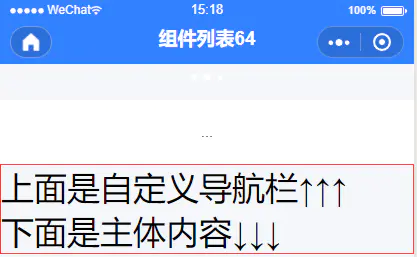
因为自定义导航栏是fixed到顶部的,为了保证不挡住下面的主体内容,我们需要在导航栏和主体内容之间添加一个跟导航栏相同的高度,class先叫做box。这样可以保证导航栏不挡着主体内容。但是会出现另一个问题,如果此页面支持下拉刷新,那么导航栏会把小程序原生的loading样式挡住,而在主体内容的前面会出现一个空白的box,虽说不影响使用,但是在用户看来会很奇怪,莫名其妙的多出来一块,box只有在loading结束后才会上去。所以在这里需要自己手写一个loading的动画效果放在组件的zui底下,高度跟导航栏一样。
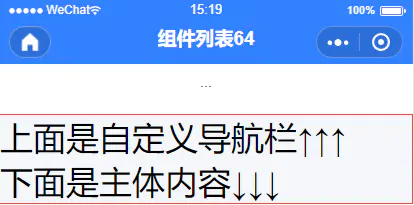
可以看到下面的zui终效果,蓝色导航条下面的三个点是小程序原生loading,再下面三个小点是自己写的loading。
而我们想要的效果则是,当小程序原生的loading被当时,自己写的loading就可以替代原生的loading
headerNavbar.js
状态栏高度 = app.globalData.systeminfo.statusBarHeight
需要注意胶囊位置信息的原点是在页面的左上角,所以需要转换一下,把原胶囊位置信息起名为胶囊,转换后的叫做现胶囊。
/*** iphone6 的胶囊位置信息
* wx.getMenuButtonBoundingClientRect() 坐标信息以屏幕左上角为原点
* 胶囊宽度: 87
* 胶囊高度: 32
* 胶囊左边界坐标: 278
* 胶囊上边界坐标: 26
* 胶囊右边界坐标: 365
* 胶囊下边界坐标: 58
* 状态栏高度:20*/
现胶囊上边距 = 胶囊上边界坐标 - 状态栏高度
现胶囊右边距 = 屏幕宽度 - 胶囊右边界坐标
现胶囊下边距 = 胶囊下边界坐标 - 胶囊高度 - 状态栏高度
导航栏高度 = 胶囊下边界坐标 + 现胶囊下边距
注意:胶囊下边界坐标包含了状态栏、胶囊高度和状态栏和胶囊高度之间的距离,因为胶囊是居中在导航栏里的,所以上边距与下边距应该一致,所以是 胶囊下边界坐标 - 胶囊高度 - 状态栏高度。
const app = getApp();
Component({
  properties: {
    navbarData: { // 由父页面传递的数据
      type: Object,
      value: {},
      observer: function (newVal, oldVal) { }
    }
  },
  data: {
    haveBack: true, // 是否有返回按钮,true 有 false 没有 若从分享页进入则为 false
    statusBarHeight: 0, // 状态栏高度
    navbarHeight: 0, // 顶部导航栏高度
    navbarBtn: { // 胶囊位置信息
      height: 0,
      width: 0,
      top: 0,
      bottom: 0,
      right: 0
    }
  },
  // 微信7.0.0支持wx.getMenuButtonBoundingClientRect()获得胶囊按钮高度
  attached: function () {
    let statusBarHeight = app.globalData.systeminfo.statusBarHeight // 状态栏高度
    let headerPosi = app.globalData.headerBtnPosi // 胶囊位置信息
    /**
     * wx.getMenuButtonBoundingClientRect() 坐标信息以屏幕左上角为原点
     * 菜单按键宽度: 87
     * 菜单按键高度: 32
     * 菜单按键左边界坐标: 278
     * 菜单按键上边界坐标: 26
     * 菜单按键右边界坐标: 365
     * 菜单按键下边界坐标: 58
     */
    let btnPosi = { // 胶囊实际位置,坐标信息不是左上角原点
      height: headerPosi.height,
      width: headerPosi.width,
      // 胶囊top - 状态栏高度
      top: headerPosi.top - statusBarHeight,
      // 胶囊bottom - 胶囊height - 状态栏height (现胶囊bottom 为距离导航栏底部的长度)
      bottom: headerPosi.bottom - headerPosi.height - statusBarHeight,
      // 屏幕宽度 - 胶囊right
      right: app.globalData.systeminfo.screenWidth - headerPosi.right
    }
    let haveBack;
    if (getCurrentPages().length === 1) { // 当只有一个页面时
      haveBack = false;
    } else {
      haveBack = true;
    }
    this.setData({
      haveBack: haveBack, // 获取是否是通过分享进入的小程序
      statusBarHeight: statusBarHeight,
      navbarHeight: headerPosi.bottom + btnPosi.bottom, // 原胶囊bottom + 现胶囊bottom
      navbarBtn: btnPosi
    })
  },
  methods: {
    _goBack: function () {
      wx.navigateBack({
        delta: 1
      });
    },
    _goHome: function () {
      wx.switchTab({
        url: '/pages/index/index',
      });
    }
  }
})
通过 getCurrentPages() 来判断当前页面是否从分享页进入,因为如果从分享页进入页面栈中应该只有一条数据,在跳转到其他页面时页面栈的length则会增加,在其他页面就会显示出返回和首页按钮。
注意:微信7.0.0支持wx.getMenuButtonBoundingClientRect(),如果想兼容低版本的微信,只能把导航栏的高度写死,通过一些大佬的计算得出的高度:
'iPhone': 64,
'iPhone X': 88,
'android': 68
具体查看:
https://developers.weixin.qq.com/community/develop/doc/0006c012dc8028f04b070dd0551004
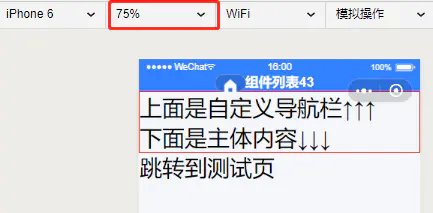
如果你使用wx.getMenuButtonBoundingClientRect()得到信息有小数,如下所示
{height: 24, width: 65.25, top: -0.5, bottom: -0.5, right: 101.25}
那么你可能是把开发工具中的视图缩放了,还原成100%就正常了。
headerNavbar.wxss
.navbar-wrap {
	position: fixed;
	width: 100%;
	top: 0;
	z-index: 9999999;
	background-color: #3281FF;
	box-sizing: border-box;
}

.navbar-text {
	text-align: center;
	font-size: 36rpx;
	color: #fff;
	font-weight: 600;
}

.navbar-icon {
	position: fixed;
	display: flex;
	border-radius: 64rpx;
	border: 0.5px solid rgba(255,255,255, 0.3);
	box-sizing: border-box;
}

.navbar-icon image {
	height: 20px;
	width: 20px;
	padding: 5px 10px 10px;
	display: inline-block;
	overflow: hidden;
}

.navbar-icon view {
	height: 18px;
	border-left: 0.5px solid rgba(255,255,255, 0.3);
	margin-top: 6px;
}

.navbar-loading {
	background: #fff;
	text-align: center;
}
引用组件页面代码
navigationStyle.json
{
    "navigationStyle": "custom",
    "enablePullDownRefresh": true,
    "backgroundTextStyle": "light",
    "usingComponents": {
        "headerNavbar": "/components/headerNavbar/headerNavbar"
    }
}
先在需要使用自定义导航栏的页面json中添加navigationStyle:custom
enablePullDownRefresh: true 开启下拉刷新
backgroundTextStyle: light是把loading的样式改成白色,这样就不会显示出来loading的三个点
navigationStyle.wxml
<headernavbar navbar-data="{{nvabarData}}"></headernavbar>
<view class="home-page">
   <text>
    上面是自定义导航栏↑↑↑
   </text>
   <text>
    下面是主体内容↓↓↓
   </text>
   <navigator url="./testPage">
    跳转到测试页
   </navigator>
</view>
navigationStyle.js
Page({
    data: {
        // 组件所需的参数
        nvabarData: {
            showCapsule: 1,
            // 是否显示左上角胶囊按钮 1 显示 0 不显示
            title: '组件列表' // 导航栏 中间的标题
        }
    },

    onPullDownRefresh() {
        setTimeout(() = >{
            wx.stopPullDownRefresh(); // 停止下拉
        },
        2000);
    },

})
注意:虽说这么做在小程序开发工具中看起来都是对的,得到的导航栏高度也是64px但是在真机上测试后,还是有偏差,在iphone8 plus上高度是60px。
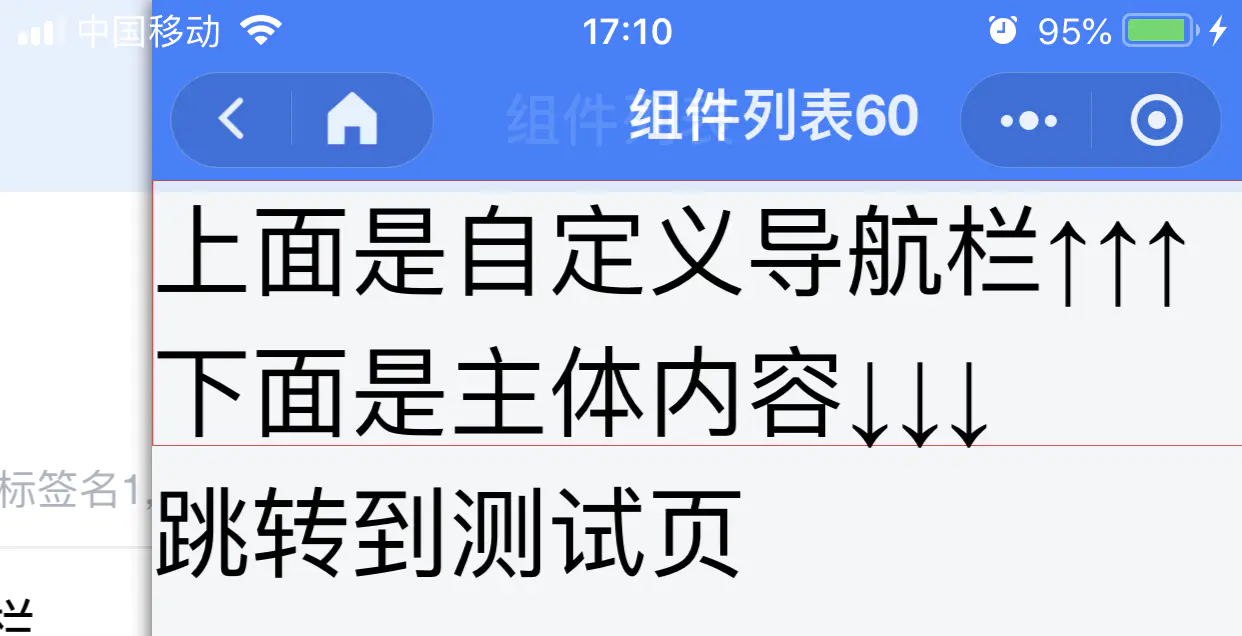
可以通过这张图明显看到差了几px,如果你是单独几个页面使用自定义导航,细心的用户可能会发现,但是基本不影响。如果是全局使用自定义导航,那就不存在这个问题了。
项目代码:https://github.com/Shay0921/header-navbar.git
转载自https://blog.csdn.net/liu940107600/article/details/91950512
本站分享的WordPress主题/插件均遵循 GPLv2 许可协议(开源软件)。相关介绍资料仅供参考,实际版本可能因版本迭代或开发者调整而产生变化。涉及第三方原创图像、设计模板、远程服务等内容的使用,需获得作者授权。






评论0